
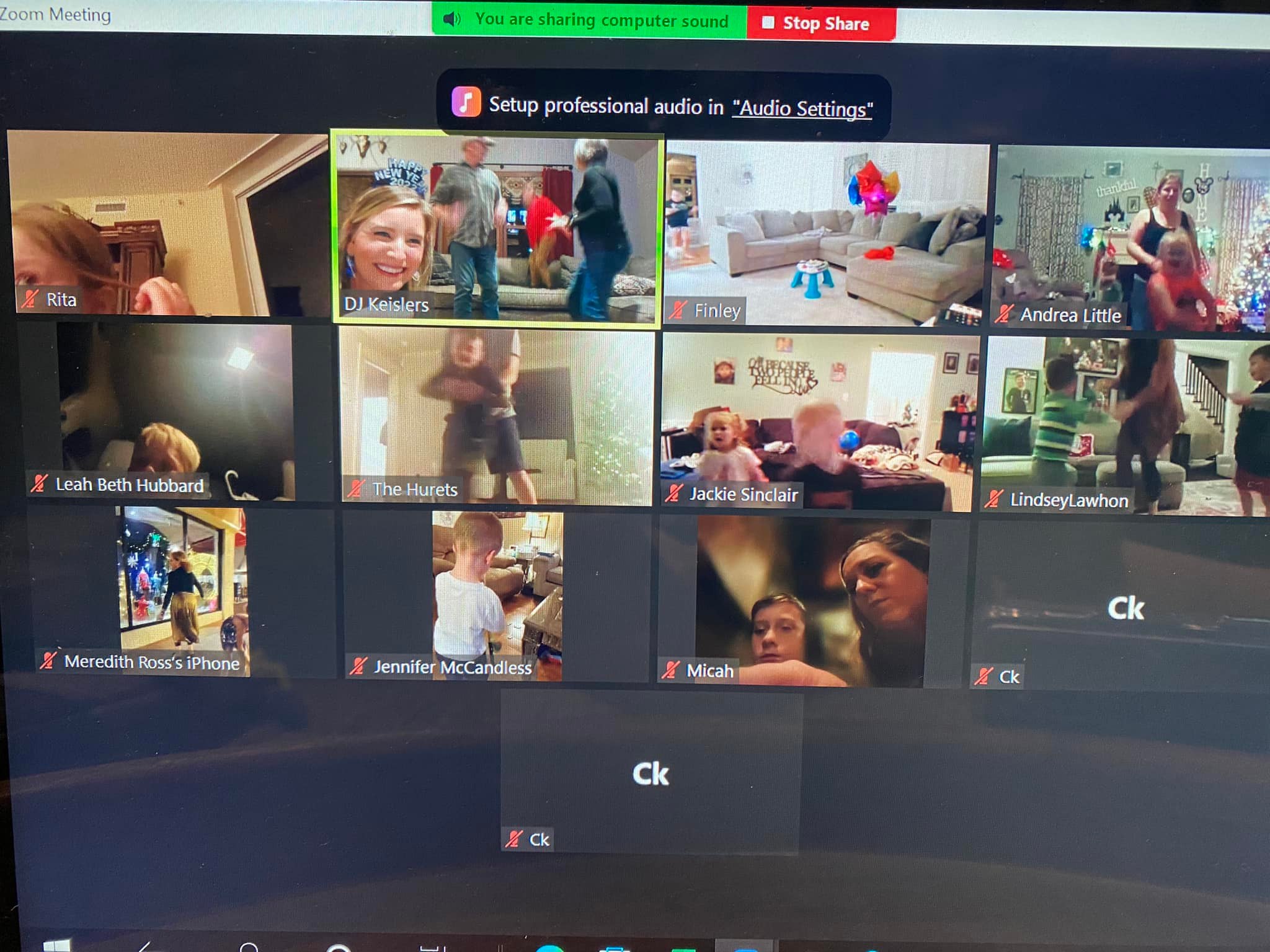
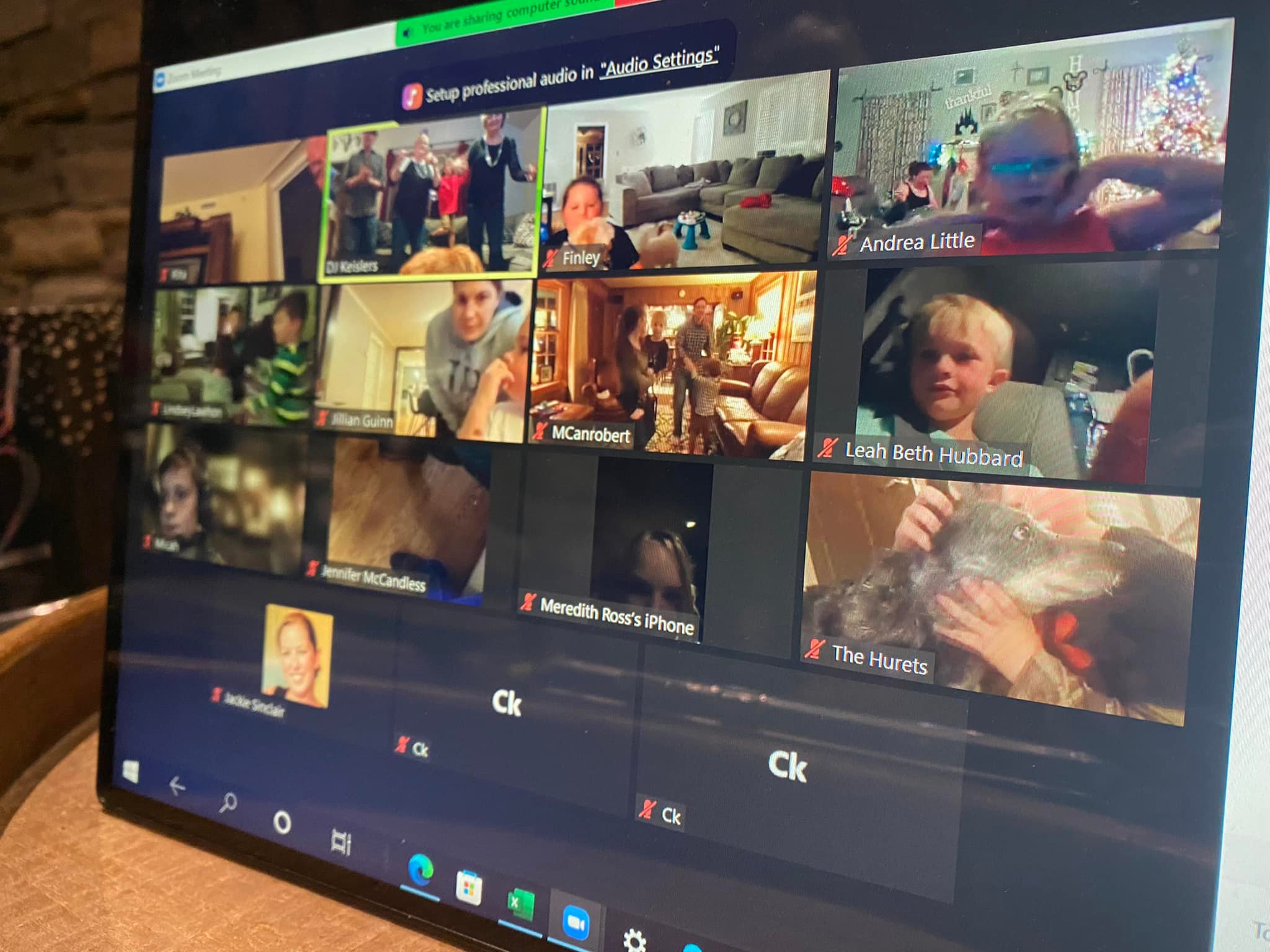
Yes, you read that right — Our family hosted a New Year’s Eve Dance Party over Zoom with our kiddos and our closest friends and their children. Global pandemic or not, most kids (12 or younger) can’t stay up to ring in the new year.
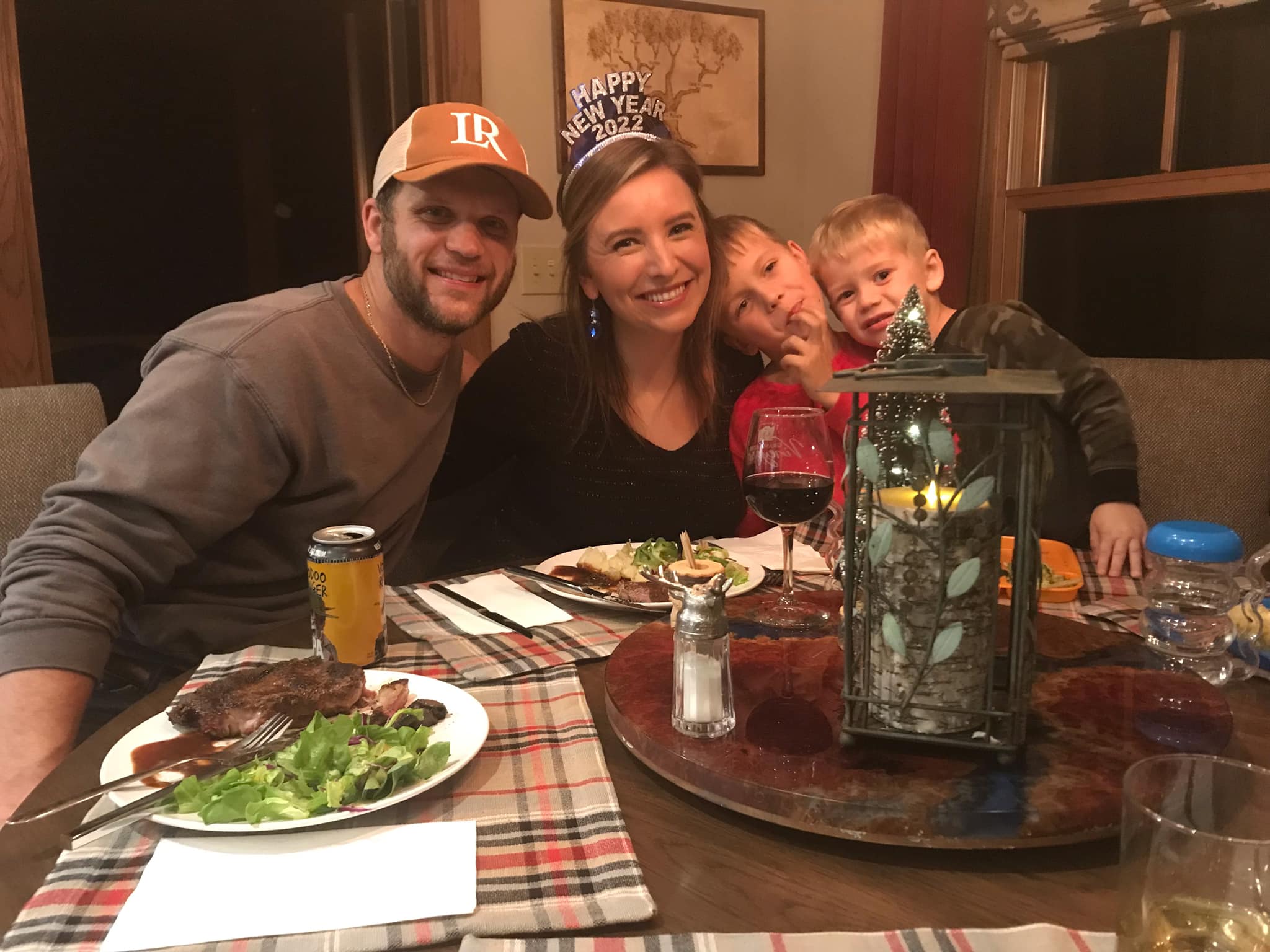
We dressed up in our sparkles, made the “ball drop” at 8:00PM, and sandwiched our new year countdown with a 90 minute high-energy dance party with all the best kid-friendly dance hits!
The best part — our party guests “zoomed” in and danced the night away from across town to over 300+ miles away at the farthest!
If you want to throw a shindig of your own, here are some how-to’s and other recommendations:
- Choose your preferred virtual platform. We used Zoom because I have access to a Pro account and I also read that their audio sharing quality is superior to their competition. Tip: You will need to invest in a “Pro Account” – the free version gives you all the features you need, but it only allows you to host meetings that are a maximum of 40 minutes. Zoom allows you to pay for a Pro account month-by-month, therefore, sign up for the party and then cancel with no penalty. However, this far into a global pandemic — the odds are in your favor that a friend has access to a Pro account that you could use.
- Schedule the meeting. Login to your account and select “Schedule a Meeting” (top of the page on the right). Here’s a link that provides instructions on how to schedule a meeting. I suggest that you disable the “Waiting Room” feature and enable the “Passcode” feature. This enables invited guests to enter freely without you having to stop dancing to admit them! Also, enable the guests “Video Settings” to “on” and default all guests audio to “mute upon entry.”
- Warning: Only provide the meeting access link and passcode to invited guests only — never publish the meeting access instructions in a public forum. This puts your event at major risk for potentially nefarious behavior from a complete stranger!
- Invite your friends to the party! I created a simple private Facebook event page and sent invitations to our closest friends. To lessen the risk that the event links would land in the wrong hands prior to the event, I posted the access instructions in the comment thread on the event page with a reminder on the day of the party.
- I recommend running a rest event prior to the official event. Practice sharing your computer audio (instructions next); sharing your screen to show the “ball drop” video and running through your playlist. You can do this by logging in as the “Host” on one device and soliciting your spouse or friend to log in using the event links as a Guest” on a separate device.
- How to share your “computer audio only” on Zoom for best sound quality: To do this, select the green “share screen” button in the bottom menu. That will open this pop up. In the top menu of this pop up, you’ll see “advanced”. Click on the “Advanced” tab. Select “computer sound only” and click “share” in the bottom right. Whatever sound that you are playing on your computer via Spotify or AmazonMusic…etc will be heard by your guests.
- Find a “Ball Drop” video and have it ready to “Share Screen” — Simply search YouTube for your favorite from years prior. We used a video from Time Square from the year before. Tutorial on how to share your screen here.
- Prepare your playlist. I used AmazonMusic to create our playlist, however, you may prefer Pandora or Spotify. I recommend you pay attention to ensure you download the clean lyric tracks. Also, consider the order of your playlist — mix in today’s hits that the kids will recognize with older classics that everyone loves! Check out our playlist below.
- Create an event schedule — We started the event at 7:00PM, dropped the ball at 8:00AM and then danced until 8:30PM when we called it a night. 90 minutes seemed long enough, but not too long for your little guests to lose interest.
- Party Time! This will truly be a night to remember! Get dressed up and be ready to shimmy, shake and twirl into the new year……and then call it a night in time for bed time!
- If you experience any tech issues — don’t worry —no one has attended a glitch-free virtual event to date! However, I will stress again the importance of running a “test event” to practice before the real deal.
Our Kid-Friendly Music Playlist (1 Hr. 33 Min):
- I Gotta Feeling – Black Eyed Peas
- Happy – Pharrell Williams
- Get Yo Body Movin’ – Koo Koo Kanga Roo
- Cupid Shuffle – Cupid
- Gasolina – Daddy Yankee
- Sweet Caroline – Neil Diamond
- Hey Ya! – Outkast
- I Wanna Dance With Somebody – Whitney Houston
- Uptown Funk – Kidz Bop Kids
- Can’t Stop the Feelin’ -Justin Timberlake
- Night Fever – Bee Gees
- Roar – Katy Perry
- You Can’t Hurry Love – The Supremes
- Everything is Awesome – Tegan and Sara
- Jump – Van Halen
- You’re the One that I Want – John Travolta
- Old Town Road – Kidz Bop Kids
- Footloose – Kenny Loggins
- Legend – The Score
- Celebration – Kool & The Gang
- Dancing Queen – ABBA
- We are Family – Sister Sledge
- Astronaut In the Ocean – Kidz Bop Kids
- Fancy Like – Walker Hayes
- Levitating – Kidz Bop Kids
- Shake it Off – Kidz Bop Kids
- Don’t Stop Believing – Journey
 www.LindsayKeisler.com